How to use this generator
Enter the WiFi network name exactly as it appears in router settings. SSIDs can be case-sensitive, and small differences such as spaces, hyphens, or capitalization can prevent a phone from joining. Then choose the matching security type, usually WPA/WPA2 for a protected guest network.
Add the password exactly, generate the QR preview, and test it with a device that is not already connected. A proper WiFi QR code should prompt the phone to join the network instead of forcing guests to copy the credentials manually.
Download PNG for welcome folders, front desk cards, slides, and internal signs. Use SVG for printed table tents, hotel room cards, restaurant counters, and larger signage. For more detail, read How to Create a WiFi QR Code and compare tools in Best WiFi QR Code Generators.
How to use this QR code
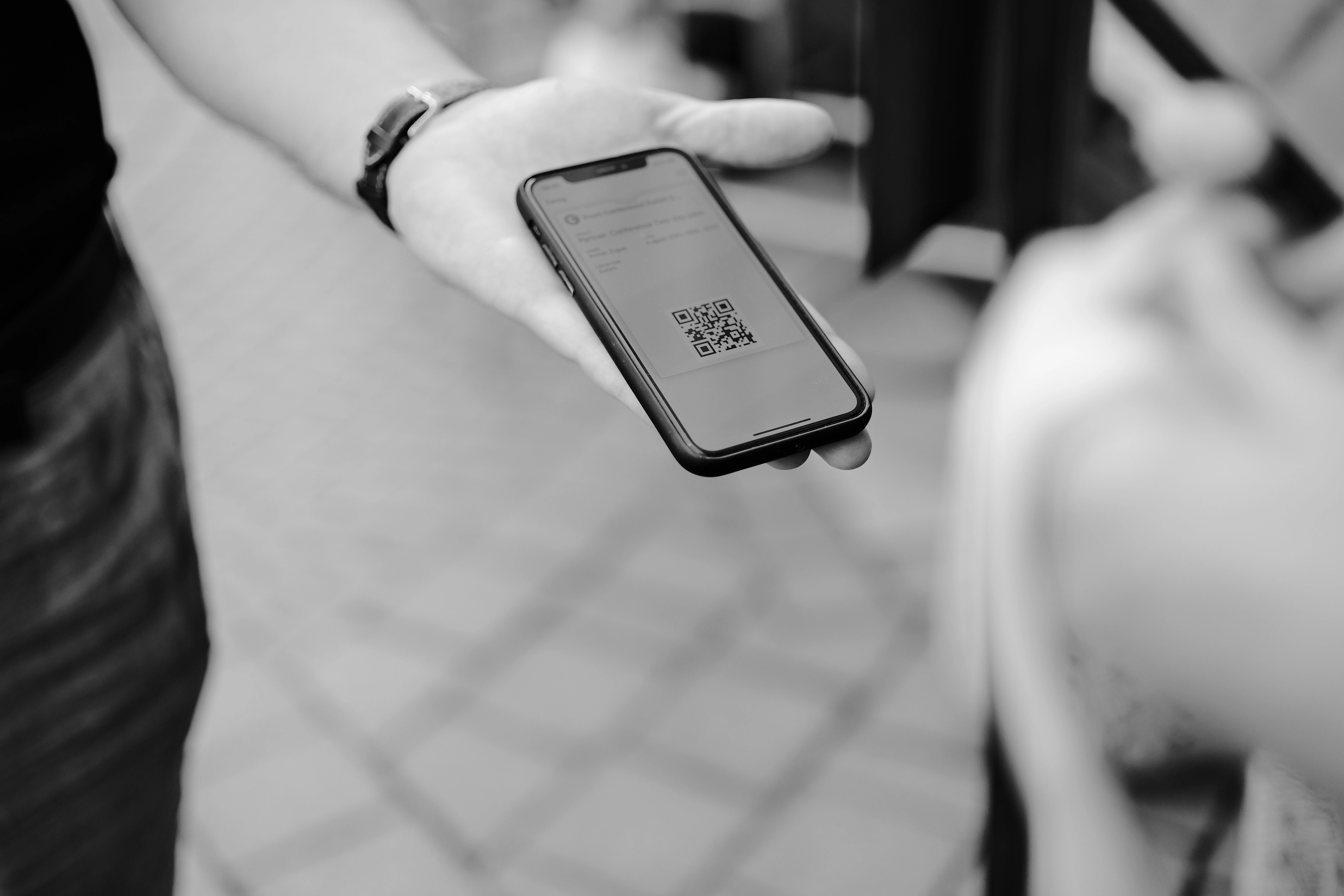
Place the code where approved guests naturally ask for WiFi: reception desks, guest rooms, cafe counters, meeting rooms, rental welcome books, conference check-in tables, and coworking entrances. Label it clearly with the network name so people know which network they are joining.
A strong example is a vacation rental welcome card that includes "Scan to join guest WiFi" beside the QR code, the property name, and a short support note. Another is an office meeting room sign that connects visitors to a guest VLAN while keeping staff systems separate.
Do not publish private credentials more broadly than intended. A QR image is convenient, but anyone who can view or photograph it can read the network details. Use a dedicated guest network, rotate passwords when needed, and remove old signs after changes.
Best use cases
WiFi QR codes are ideal for hospitality, restaurants, clinics, salons, offices, schools, events, showrooms, and short-term rentals. They reduce staff interruptions and avoid mistakes caused by reading complex passwords aloud.
For restaurants, combine this page with the Restaurant Menu QR Code Generator so table materials can separate menu access from network access. For businesses that also collect local feedback, add a separate Google Review QR code near checkout or completion moments.
At events, place WiFi QR signs near registration, help desks, and meeting rooms. Test with the expected attendance load because a QR code can share credentials, but it cannot fix an overloaded network.
Practical examples by venue
A cafe can print one WiFi QR card for the counter and one for high-traffic tables, each using the same guest network name. A short caption such as "Scan to join Cafe Guest WiFi" prevents confusion with staff networks or neighboring businesses.
A hotel can place the code on a room welcome card and include the network name, support extension, and checkout date. If the password rotates monthly, staff should replace room cards and digital welcome guides at the same time.
An office can add a WiFi QR code to meeting rooms so contractors and interview candidates can connect without asking reception. The code should connect to a guest network that cannot reach internal devices.
Common mistakes
- Sharing the main private network instead of a separate guest network.
- Choosing the wrong security type for the router configuration.
- Testing with a phone that already saved the password.
- Printing the code so small that guests must stand awkwardly close.
- Forgetting to replace printed cards after the password changes.
Also avoid putting the WiFi password QR code on fully public web pages unless that is intentional. If the code is for customers inside a venue, keep it in the venue. If it appears in a rental guide, update every printed and digital copy when credentials change.
If guests report failures, check the SSID first, then security type, then password. Small formatting errors explain many WiFi QR problems.
Printing and testing tips
Print the code with high contrast and enough size for the expected distance. A bedside card can be compact; a lobby sign should be larger. Avoid glossy glare near windows and keep the code away from folds, edges, and textured surfaces.
Test with iPhone and Android devices if possible. Disable saved network access on the test phone, scan the final print, and confirm the phone proposes the correct network.
Use a review date for every WiFi QR placement. Guest credentials tend to change over time, and old signs can create confusion faster than people report it.
If you manage several venues or rooms, label the artwork files with the location and network name before printing. That prevents a lobby code, meeting-room code, or rental-property code from being installed in the wrong place.