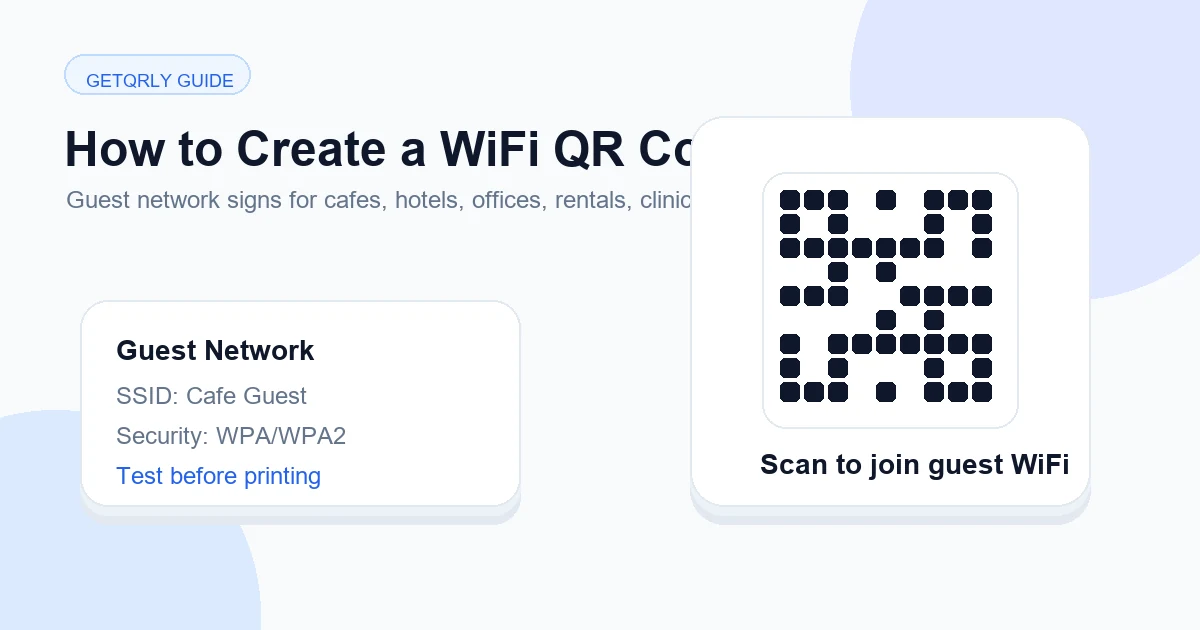
A WiFi QR code stores the network name, security type, and password in a format compatible phones can recognize. This guide explains how to plan, design, test, publish, measure, and maintain the experience in guest networks, reception areas, rental properties, venues, and shared workspaces.
Explore useful GetQRly tools: Free QR Code Generator, WiFi QR Code Generator, WhatsApp QR Code Generator, Google Review QR Code Generator, Business Card QR Code Generator, and Restaurant Menu QR Code Generator.
Helpful guides: how to create a WiFi QR code, static vs dynamic QR codes, and Google Review QR Code Guide.
Introduction
A WiFi QR code lets a phone join a wireless network by scanning a code instead of typing the network name and password by hand. For guests, it removes a small but irritating step. For staff, hosts, and front desks, it reduces repeated password questions and typing mistakes. That is why WiFi QR codes are common in cafes, restaurants, hotels, offices, Airbnb rentals, clinics, salons, coworking spaces, schools, and events.
The important detail is accuracy. A WiFi QR code is only as good as the network name, encryption type, and password inside it. One wrong capital letter, extra space, or wrong security setting can make the scan fail. This guide shows how to create WiFi QR code artwork with GetQRly, test it on mobile, print it at a useful size, and handle security responsibly.
You can start with the GetQRly WiFi QR Code Generator. It creates a free static WiFi QR code that you can download as PNG or SVG. If you need a normal website QR code instead, use the general QR code generator.
What a WiFi QR code is
A WiFi QR code stores network connection details in a format many modern phones understand. The encoded value includes the network name, also called the SSID, the encryption type, and the password if the network is protected. When a compatible phone scans the code, it can show a prompt to join the network instead of making the person open settings and type credentials manually.
This is different from a website QR code. A website code opens a URL in the browser. A WiFi QR code is designed to trigger a network-join action. Because the credentials are encoded directly into the QR image, anyone who can scan or inspect the image may be able to obtain the password. That is why businesses should use a guest network rather than the private network used for staff devices, payment systems, routers, printers, storage, or internal equipment.
Static WiFi QR codes are usually the right format because the phone needs the credentials directly. If the password changes, generate a new code and replace every printed copy. For campaign links or landing pages where scan analytics matter, read Static vs Dynamic QR Codes before choosing the format.
Why businesses use WiFi QR codes
Businesses use WiFi QR codes because they turn a repeated service interruption into a self-service moment. A cafe barista does not have to spell a long password over music. A hotel receptionist does not need to explain capitalization to each guest. A clinic can keep visitors connected while they wait. A salon can place a tidy card near reception instead of taping a handwritten password to a counter.
They also reduce errors. Passwords with uppercase letters, punctuation, similar-looking characters, or long random strings are easy to mistype. A QR code preserves the exact value. For restaurants and cafes, guest WiFi access can support online menus, ordering pages, loyalty programs, review requests, and booking flows. For offices and clinics, it helps approved visitors connect without giving them access to internal networks.
Use cases include table cards in restaurants, counter signs in cafes, room cards in hotels, welcome binders in Airbnb rentals, reception signs in offices, waiting-room cards in clinics, mirror or desk cards in salons, event registration desks, and meeting room displays. The best placement is close to the moment someone asks for WiFi.
Step-by-step guide: how to create a WiFi QR code
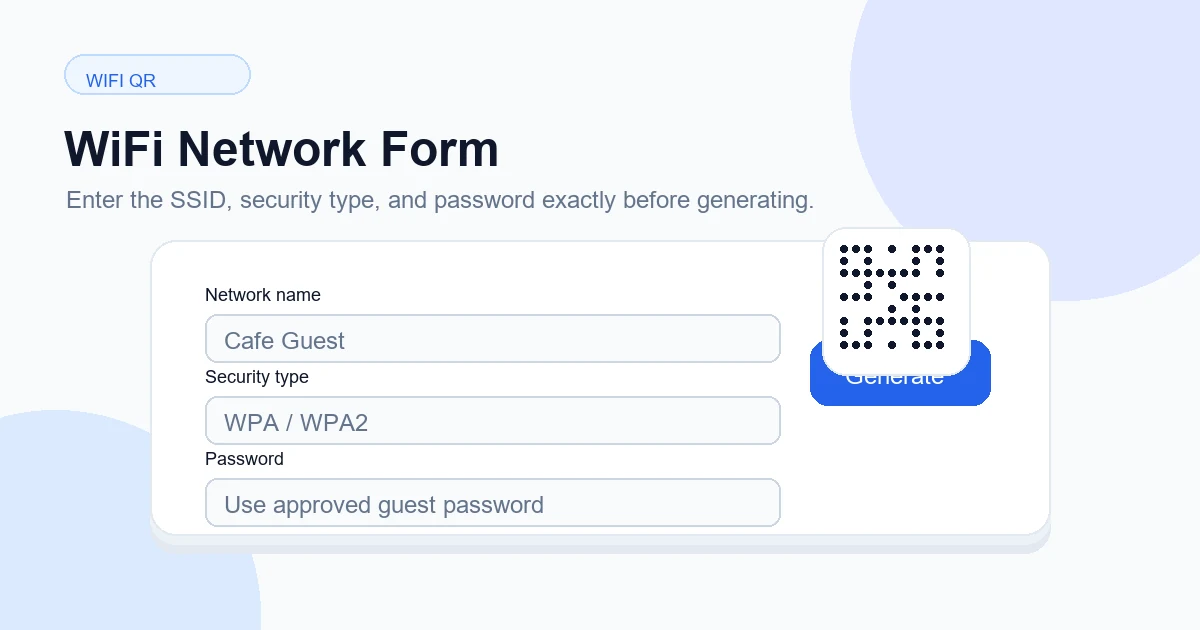
1. Enter the WiFi network name
Open the WiFi QR code generator and enter the SSID exactly as it appears in your router or access point settings. Network names are case-sensitive. “Guest WiFi” is different from “guest wifi,” and hidden spaces or punctuation can matter.
2. Choose encryption type
Select the security type that matches the network. Most guest networks use WPA or WPA2. Choose the open or no-password option only when the network is intentionally open. Enterprise networks, captive portals, and identity-based logins may require extra steps that a simple WiFi QR code cannot complete alone.
3. Enter password
Copy the password from the router, password manager, or approved network documentation if possible. Avoid retyping from memory. A single wrong character can make the code fail. Do not enter router admin passwords, staff passwords, or private network credentials that visitors should not have.
4. Generate QR code
Generate the preview and confirm that the selected fields match the intended guest network. Download PNG for simple documents and digital signs. Download SVG for professional print layouts, table tents, room cards, and signage that may be resized.
5. Test it on mobile
Scan the preview with a phone that is not already connected to the network. The phone should show a join-network prompt. Test with iPhone and Android if possible because guests use different devices. After joining, open a website to confirm internet access, not just connection to the access point.
6. Print it for guests
Print the code with a clear label such as “Scan to join guest WiFi.” Include the network name beside the code so guests know what they are joining. For final print sizing, use the QR Code Size Guide.
Best use cases for WiFi QR codes
- Cafes: place a small card near the register or seating area so guests can connect before ordering from a digital menu.
- Restaurants: add WiFi QR cards to tables, especially when guests need internet access for menus, reservations, ordering, or reviews.
- Hotels: include the code on room cards, lobby signs, and welcome folders with support instructions.
- Offices: place a guest network code in meeting rooms and reception while keeping internal networks private.
- Airbnb rentals: add the code to the welcome guide, fridge card, or entry table so guests connect without messaging the host.
- Clinics and salons: provide a guest code in waiting areas where visitors may need to complete forms or browse during appointments.
The same code can work across several controlled placements if the network details are identical. For larger businesses, keep a list of every place the code appears. That makes password rotation easier because every table card, room guide, sign, or printed folder can be replaced at the same time.
Create a free WiFi QR code with GetQRly
Enter your guest network details, generate a scannable WiFi QR code, then download PNG or SVG for signs and cards.
Common mistakes to avoid
- Wrong password: one typo is enough to fail. Copy the approved value when possible.
- Wrong SSID: capitalization, spaces, punctuation, and hidden network names can break the join prompt.
- Wrong encryption type: WPA, WPA2, WPA3, and open networks are not interchangeable.
- Weak print size: tiny codes on table cards or glossy signs may be hard to scan.
- Low contrast: pale colors, busy backgrounds, or decorative overlays can reduce reliability.
- Not testing: testing only with a phone already connected may hide a wrong password.
Another mistake is sharing the wrong network. A QR code makes access easy, so the network behind it should be meant for visitors. Do not encode private router admin details, internal staff credentials, payment-system networks, or any password that should remain limited to employees.
Printing tips for guest WiFi signs
Use strong contrast, a clean quiet zone around the code, and a size that matches scanning distance. A room card can be smaller than a lobby sign, but both should be tested from the real distance a guest will use. Avoid glossy glare, curved surfaces, folds, smudges, and cluttered backgrounds. For signs, SVG is usually better than PNG because it can scale without soft edges.
Write the instruction in plain language: “Scan to join guest WiFi” is better than “Scan me.” Include the network name in readable text, but you do not always need to print the password visibly. If the code is used in a rental, add a note about where to get help. If it is used in a venue, make sure staff know which network the code opens.
Before printing many copies, print one proof. Test it under the lighting, distance, and angle of the real placement. If guests will scan from a table, sit down and test from the table. If they will scan from a lobby, stand where a visitor naturally stands.

Security tips for WiFi QR codes
Use a dedicated guest network. Guest isolation helps keep visitors away from private computers, printers, storage devices, point-of-sale systems, smart-home devices, and staff equipment. A guest network also makes password rotation easier because changing it does not disrupt internal systems.
Do not share private router admin details. The WiFi password and the router administration password are different things. A guest QR code should never expose the admin login, router management URL, internal network notes, or staff-only instructions. Store those details separately and restrict who can access them.
Replace printed codes when the password changes. Static WiFi QR codes contain the old credentials and cannot update themselves. If you need a public sign that points to changing instructions instead of direct credentials, consider a dynamic QR code to a maintained landing page, but remember that direct WiFi joining generally requires the credentials in the QR image.

Rate it after reading so we can keep improving GetQRly guides.