
A review QR code should make honest feedback convenient without pressuring the customer. This guide explains how to plan, design, test, publish, measure, and maintain the experience in post-purchase and post-service moments.
Explore useful GetQRly tools: Free QR Code Generator, WiFi QR Code Generator, WhatsApp QR Code Generator, Google Review QR Code Generator, Business Card QR Code Generator, and Restaurant Menu QR Code Generator.
Helpful guides: how to create a WiFi QR code, static vs dynamic QR codes, and Google Review QR Code Guide.
Introduction
A Google Review QR code helps customers open the correct Google review page by scanning a printed or digital code. It does not create reviews by itself, and it should not pressure people into leaving only positive feedback. Its job is simpler and more useful: remove friction after a real visit, purchase, appointment, meal, repair, stay, or service experience.
For local businesses, reviews can influence trust, search visibility, and customer decisions. A person standing at a front desk, holding a receipt, or leaving a restaurant may be willing to leave feedback, but typing a business name into Google and finding the right listing is a chore. A well-placed QR code can open the right review flow faster.
This guide explains how to create a Google review QR code with GetQRly, where to place it, what wording is policy-safe, and which mistakes to avoid. Start with the Google Review QR code generator when you have your review link ready.
What a Google Review QR code is
A Google Review QR code is a QR code that points to a Google review link for a specific business profile or location. When scanned, the customer should reach a page where they can share feedback about their experience. The best version uses a tested, location-specific link and a clear request that invites honest feedback.
This is especially important for multi-location businesses. A restaurant group, clinic chain, hotel brand, repair company, or salon with several branches should not use one generic listing link everywhere. Each location needs its own review link so feedback goes to the correct profile. Before printing, open the link in a private browser and confirm the right business name, address, and review flow appear.
GetQRly turns that link into a clean QR image you can download as PNG or SVG. For long-running printed cards or multi-location campaigns, a dynamic QR code can also be useful because the destination can be corrected later and scan counts can be monitored from the dashboard.
Why reviews matter for local businesses
Reviews help future customers understand what it feels like to visit or hire a business. A cafe may earn trust through comments about service and atmosphere. A clinic may show professionalism through consistent patient feedback. A repair shop may reassure people by showing real examples of completed work and helpful communication. Hotels, salons, restaurants, and service businesses all benefit when genuine customer experiences are easier to find.
Reviews also help owners learn. Patterns in feedback can reveal confusing signs, slow checkout, popular staff behaviors, menu problems, appointment issues, packaging questions, or service strengths worth repeating. A QR code is not only about collecting stars. It can be part of a healthy feedback loop when staff read and respond professionally.
The request must be neutral. Do not ask only happy customers, do not offer rewards for positive reviews, and do not ask staff to filter people based on sentiment. The safest approach is to invite honest feedback from real customers after a genuine experience.
Step-by-step guide: how to create a Google Review QR code
1. Get your Google review link
Find the review link for the correct Google Business Profile location. If you manage multiple locations, label each link carefully. Test the link in a private browser window before using it in a QR generator.
2. Paste it into GetQRly
Open the Google Review QR code generator and paste the tested review URL. If you need a simple website QR code instead, use the general QR code generator.
3. Generate QR code
Create the preview and check that the QR code points to the exact review destination. Download PNG for receipts, quick signs, and digital layouts. Download SVG for professionally printed cards, table tents, packaging inserts, and counter signs.
4. Test it
Scan the QR code from the final artwork, not only from the browser preview. Confirm that the right location opens and that the page is usable on mobile.
5. Print it where the request makes sense
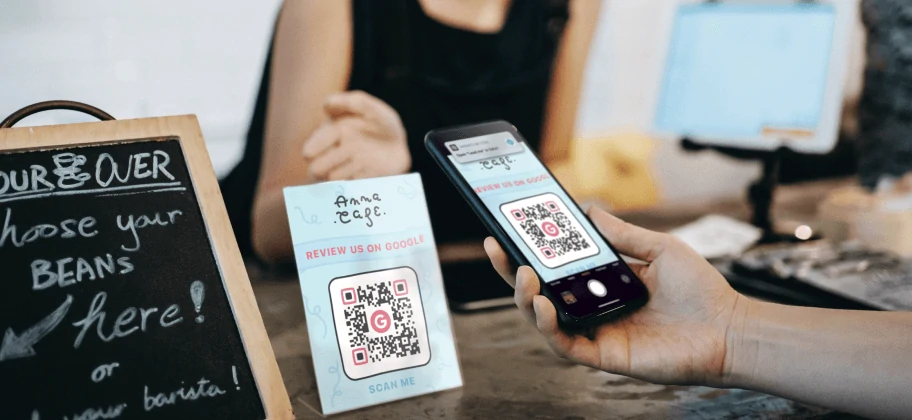
Use the code on thank-you cards, receipts, table signs, front desks, checkout counters, packaging, invoices, service completion cards, and follow-up handouts. Place it after a real interaction, not before the customer has experienced the business.
Best use cases and placement ideas
- Restaurants and cafes: table tents, receipts, takeaway packaging, counter cards, and “thank you” inserts.
- Salons and clinics: front desk signs, appointment checkout cards, follow-up handouts, and waiting area displays.
- Repair shops: invoices, service completion cards, packaging, and pickup counters.
- Hotels: room folders, checkout desks, lobby signs, and post-stay cards.
- Service businesses: invoices, job completion cards, van leave-behinds, and customer emails that include the same review link.
Good placement matches a positive or complete moment. A repair customer has just received their item, a diner has just paid, a guest is checking out, or a client has approved finished work. The QR code should be visible, but it should not block service, delay checkout, or make staff sound pushy.
For counters and table tents, print the code large enough to scan without awkward positioning. For receipts, keep the code clean and avoid printing it so small that phone cameras struggle. For packaging, place it near a short request and away from folds, seams, or curved edges.
Review request wording examples
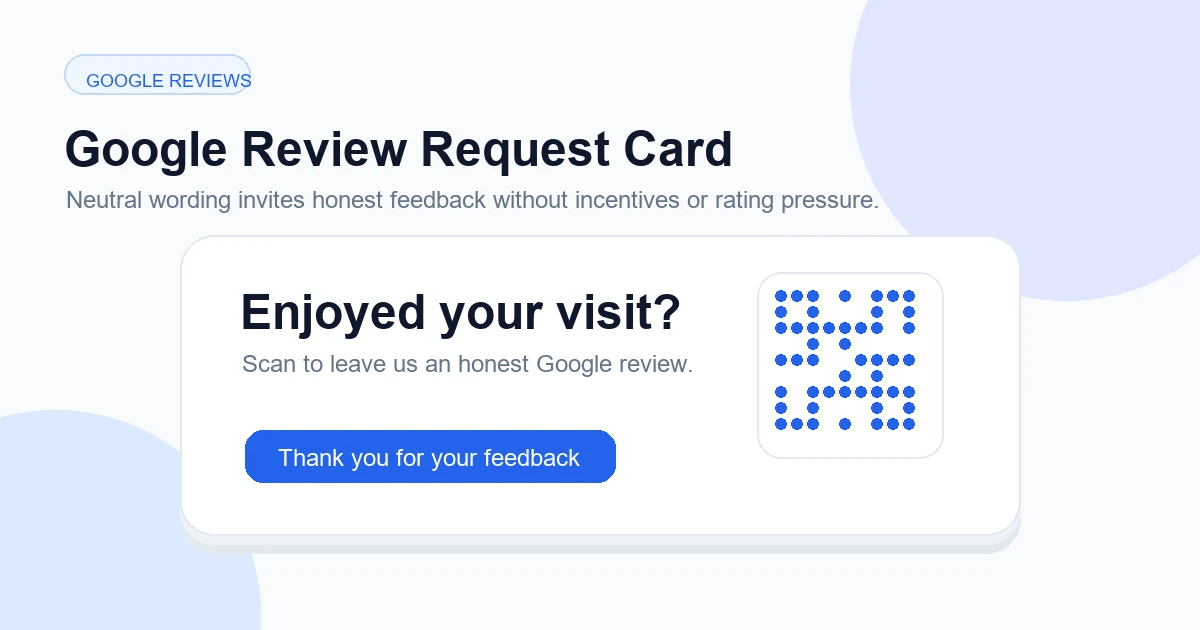
Use wording that invites honest feedback without steering the customer toward a specific rating. Simple examples include: “Enjoyed your visit? Scan to leave us a Google review.” and “Your feedback helps our small business grow.” Those are clear, polite, and easy to understand.
Other useful examples are “Share your experience on Google,” “Tell us how we did,” “Scan to review your visit,” and “Feedback helps future customers find us.” For service businesses, try “Happy with the service? We’d appreciate your honest Google review.” For restaurants, try “Thank you for dining with us. Scan to share your experience.”
Avoid wording such as “Scan for a five-star review,” “Leave a positive review for a discount,” or “Only scan if you loved us.” Those phrases can create policy and trust problems. A review process is healthiest when it invites genuine feedback from real customers without incentives or filtering.
Create a free Google Review QR code with GetQRly
Turn your tested Google review link into a clean QR code for cards, receipts, counters, table signs, and packaging.
Common mistakes to avoid
- Using the wrong location link: multi-location businesses need location-specific review links.
- Asking only for positive reviews: invite honest feedback instead of filtering customers.
- Offering rewards for reviews: avoid discounts, gifts, or incentives tied to review activity.
- Printing too small: receipts and cards still need a scannable size and quiet zone.
- Not testing: always scan the final artwork before printing many copies.
- Using vague labels: “Scan me” is weaker than a clear review request.
Another mistake is treating reviews as a one-way collection tactic. Monitor the profile after people use the QR code. Respond professionally, thank customers where appropriate, and handle critical feedback calmly. Do not reveal private details in public responses.
Policy-safe wording and responsible review requests
A policy-safe review request is neutral, honest, and connected to a real customer experience. It does not request a specific star rating. It does not offer a reward for leaving a review. It does not ask staff to show the QR code only to people who appear satisfied. It does not discourage unhappy customers from speaking publicly.
Train staff to use simple wording: “If you have a moment, we’d appreciate your honest feedback on Google.” That keeps the request natural and respectful. If a customer has a complaint, staff should still help them through the normal service process rather than trying to divert them away from a review page.
For more examples and placement planning, read How to Find and Test Your Google Review Link, Best Places to Display a Google Review QR Code, and Google Review Request Examples.
Printing and testing tips
Use a clear CTA, high contrast, enough white space, and a practical physical size. A front-desk sign can be larger than a receipt code. A table tent should work from a seated position. A packaging insert should avoid folds and shiny glare. For professional print, SVG is usually safer because it scales cleanly.
Test the exact final artwork. Scan from the printed card, receipt, sign, or packaging proof. Confirm that the right Google listing opens, the mobile flow is understandable, and the customer is not sent to a generic search result or wrong branch.
If the business changes location, rebrands, merges listings, or creates new Google Business Profile locations, retest every review QR code. Dynamic QR links can reduce reprint risk for long-running campaigns, but the final Google review link still needs regular checking.
Rate it after reading so we can keep improving GetQRly guides.